
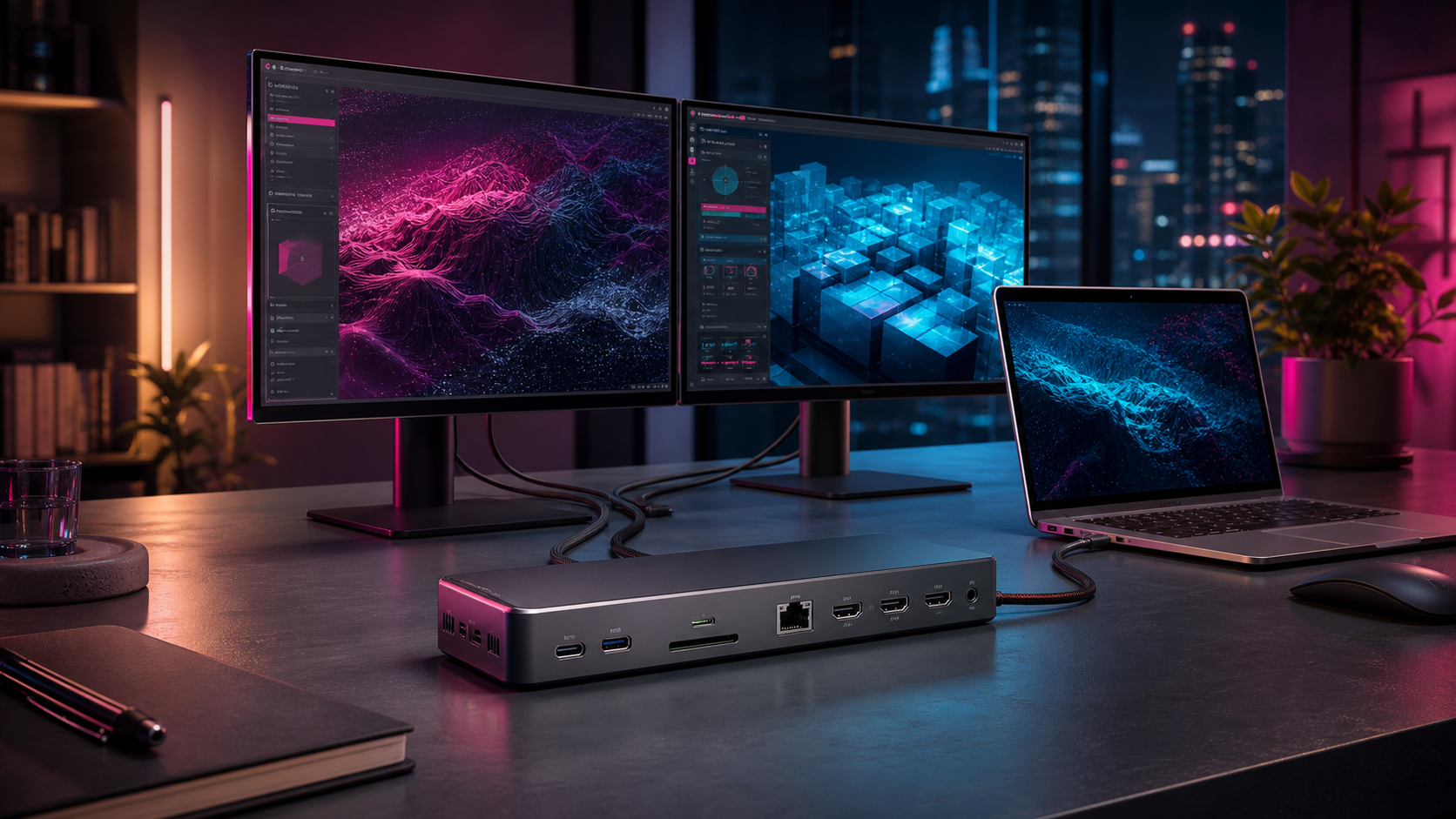
A USB-C docking station for dual monitors should reduce cable clutter, not introduce more troubleshooting. My Windows desktop runs 2 monitors on separate cables, while my travel setup is an HP laptop with a 15.6-inch portable monitor. Both work, but neither gives me that clean, single-cable arrival at a desk.
The verdict up front: the best dual monitor docking station is one your laptop can actually use. The CalDigit TS4 is the premium pick for a compatible Thunderbolt desk. The Plugable UD-6950PDH is the practical choice when a Mac needs DisplayLink to run another screen. Neither can ignore the laptop connected to it.
The 2 picks at a glance
| Pick | Best for | Main compromise |
|---|---|---|
| CalDigit TS4 | A permanent, premium Thunderbolt setup | Expensive, and dual displays still depend on the host computer |
| Plugable UD-6950PDH | Dual 4K office displays, including DisplayLink workarounds on Mac | Requires software on macOS and has protected-video limitations |
Best premium USB-C docking station: CalDigit TS4
The TS4 earns its place with 98W laptop charging and 18 ports. It makes sense when a dock anchors a full desk with monitors, storage, Ethernet, audio, and peripherals that would otherwise create cable ivy.
CalDigit states that dual-monitor support requires a computer whose Thunderbolt port supports 2 displays. A base M1 or M2 MacBook still supports only 1 native external display. The TS4 cannot negotiate with the chip on your behalf.
It is also more dock than most travelers need. If my HP and portable monitor work with separate cables, I would not pack a desktop dock merely to make the hotel desk prettier.
Best MacBook DisplayLink dock: Plugable UD-6950PDH
Plugable’s 14-in-1 dock can run 2 displays up to 4K at 60Hz through DisplayLink and provides up to 100W charging. That makes it useful for a base M1 or M2 MacBook, or an M3 MacBook that needs the internal screen and 2 external displays active together.
DisplayLink is software-rendered rather than native video output. Plugable does not recommend this dock for gaming, graphics-heavy work, or video editing. HDCP-protected streaming can also fail while it is connected to a Mac. It suits spreadsheets, documents, email, and browser windows better than entertainment or creative work.
Check the laptop before counting ports
USB-C describes the connector, not everything behind it. On Windows, confirm video support through DisplayPort Alt Mode, USB4, or Thunderbolt, plus the number of displays and resolution supported.
Mac support varies by generation. Base M1 and M2 MacBooks support 1 native external display. Base M3 models can support 2 with the lid closed. M4 and M5 MacBook Air models can run 2 while keeping the built-in display active. Check the exact model rather than trusting “Mac compatible.”
The small details that decide daily reliability
- Host cable length: measure first. A short cable can leave the dock dangling like an expensive keychain.
- Charging power: 98W or 100W suits many laptops, but demanding workstations may still need their original charger.
- Display connections: favor the HDMI or DisplayPort cables you already own.
- Travel size: for 1 portable monitor, a compact hub or separate cables may remain simpler. Start with the digital nomad workspace guide before adding a full dock.
Who should skip most of this
Skip a full dock if you use 1 external monitor or already have a stable cable setup. A basic hub may cover extra ports for much less.
The right dock is not the one with the longest specification sheet. It is the smallest reliable bridge between the laptop you own and the desk you actually use.
Sources checked
- Apple Support: external displays with MacBook Air
- Apple Support: dual displays on M3 MacBook Air and MacBook Pro
- CalDigit TS4 specifications
- Plugable UD-6950PDH specifications and limitations
More field guides
Research the next purchase
Choose the room or problem you are working on next.
Browse all guides