
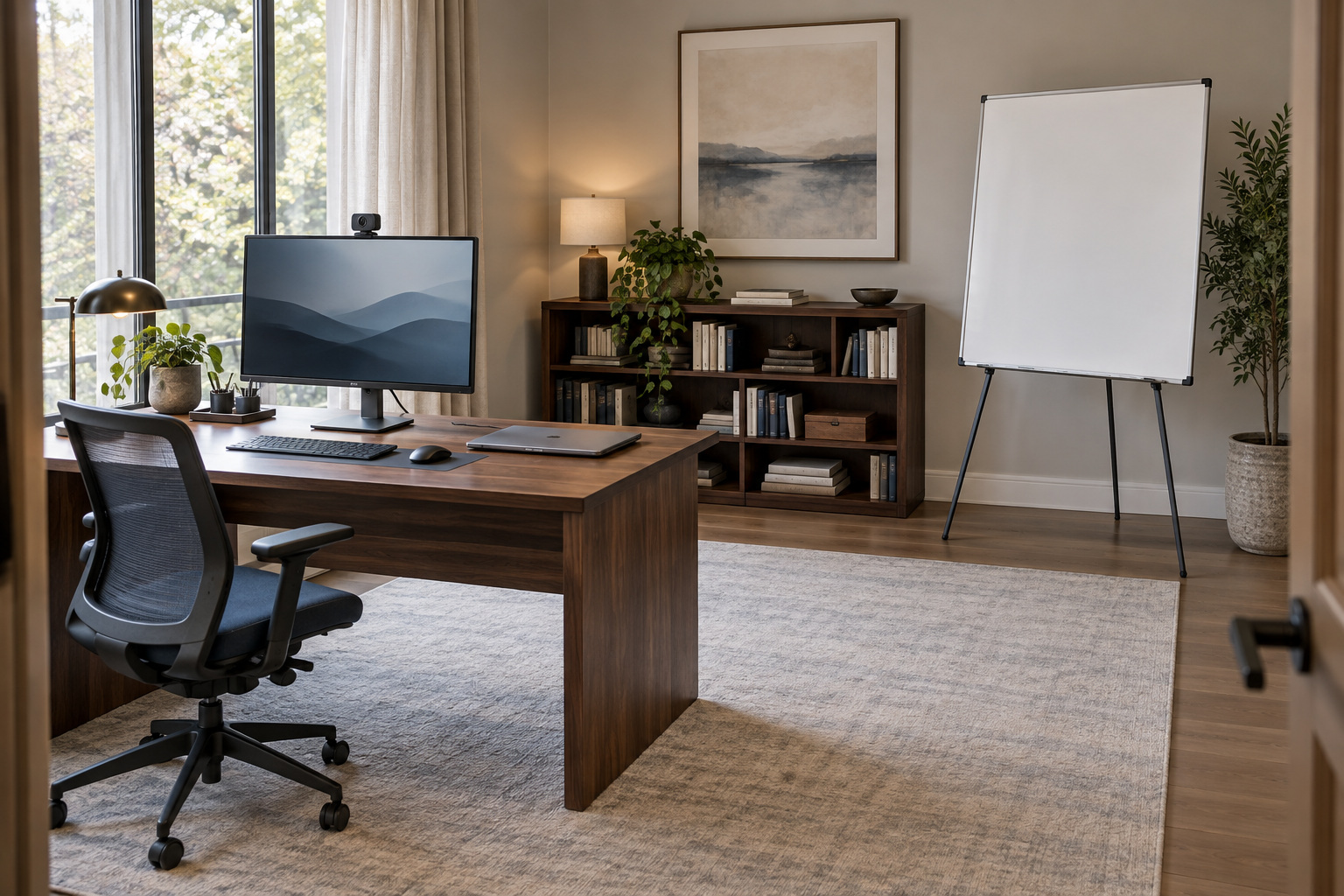
You stand to explain something, and the webcam keeps filming your empty chair. That is a useful reason to buy a tracking camera. A larger number on the box is less convincing.
The verdict up front: for a mostly seated workday, the Logitech MX Brio 705 is our default business pick. Choose the Insta360 Link 2 Pro if you regularly move beyond a fixed camera’s view. Check software compatibility first: the feature that sells you the camera needs to work on your computer.
1. Movement: turning the lens versus cropping the picture
Insta360 specifies a 2-axis gimbal for the Link 2 Pro. It physically pans and tilts. Logitech’s RightSight auto-framing adjusts the composition within the MX Brio 705’s fixed view.
The distinction matters when you step toward a whiteboard or demonstrate something beside your desk. Digital framing cannot reveal space outside the lens’s view. But shifting in your chair, or standing at a desk that raises the camera with you, does not automatically require a gimbal.
Do not confuse motorized tracking with lossless zoom. The Link also uses digital zoom. Cropping can reduce available detail, but the result depends on crop level and output resolution, not simply how far you sit from center. Both models support 4K at 30fps and 1080p at 60fps, according to Insta360’s specifications [1] and Logitech’s product page [2].
2. Software: check the actual feature requirements
Logitech lists Teams, Zoom and Google Meet certification. That does not mean your employer automatically approves Logi Tune. RightSight requires Tune on Windows or macOS, and Logitech excludes computers with ARM processors from that feature.
Insta360’s specifications say Link Controller does not support ARM-based Windows. Advanced virtual-camera effects also carry extra system requirements. However, Insta360 documents [3] a touch button and gesture control for activating tracking. Blocking app installation is not the same as disabling every useful feature.
On a managed laptop, ask IT about the specific controls you need before buying either camera.
3. Image quality: specs do not settle the winner
Insta360 lists a 1/1.3-inch sensor; Logitech lists an 8.5MP Sony STARVIS sensor without its optical format on the cited page. Those figures do not establish a direct sensor-size comparison or prove a low-light winner.
Start by improving the light on your face. Then assess a recording made with your usual app. A camera’s maximum output is a capability, not a promise about what another caller receives.
4. Five alternatives for a different job
The Link 2C Pro is worth considering for a fixed desk. It offers auto-framing instead of the Pro’s motorized tracking; it cannot turn toward a presentation area beside you.
The OBSBOT Tiny 3 Lite and Tiny 3 are other motorized options. OBSBOT’s specification sheet [4] lists 1/2-inch and 1/1.28-inch sensors respectively. That difference deserves attention, but does not prove equal tracking or a particular low-light advantage.
For local recording, the Elgato Facecam 4K offers 4K60 and 49mm filter support. Elgato specifies [5] USB 3.0 for 4K, fixed focus and a 30–120cm focus range at 4K. Check your recording distance before choosing it for close-up demonstrations.
The Anker PowerConf C200 is a simpler 2K option with a privacy cover, documented in Anker’s quick-start guide [6]. Consider it when ordinary seated calls are the whole job; it is not a motorized presentation camera.
Who should skip the upgrade
Keep your current camera if its picture is clear and its framing already works. Otherwise, rehearse the movement you actually make on a call. Buy the Link for space the camera must follow, or the Brio for a seated setup whose software requirements you can meet.
Citations
- Insta360’s specifications
- Logitech’s product page
- Insta360 documents
- OBSBOT’s specification sheet
- Elgato specifies
- Anker’s quick-start guide
More field guides
Research the next purchase
Choose the room or problem you are working on next.
Browse all guides